


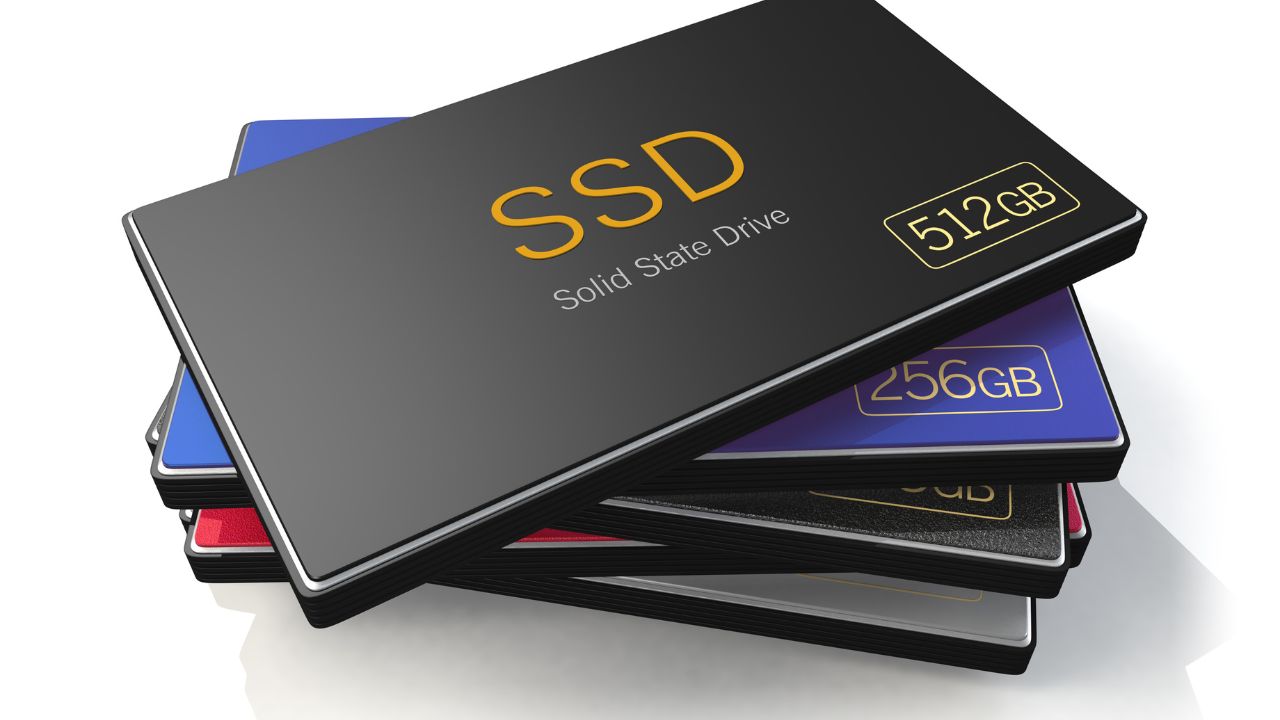
Solid State Drives (SSDs) have become a popular choice for storage because they are fast, durable, and energy efficient. They are replacing traditional Hard Disk Drives (HDDs) in laptops, gaming PCs, and other devices. A common question is: how long do SSDs last? SSDs don’t have moving parts like HDDs, so they are less likely to fail mechanically.
This article explains SSD lifespan, including key metrics (TBW, DWPD), factors that affect durability, real-world performance insights, and practical tips to extend your SSD’s life.
Average Lifespan of an SSD
A typical consumer SSD lasts about 5 to 10 years, and many can last longer under normal use. For example, home users writing 20–40 GB per day may see their SSDs last for decades.
Key Metrics That Affect SSD Lifespan
1. Terabytes Written (TBW): This shows the total amount of data that can be written to an SSD before its memory cells start to wear out. It helps estimate how long the drive will last.
2. Drive Writes Per Day (DWPD): DWPD measures how many times an SSD’s full capacity can be written daily over its warranty period without failing. A higher DWPD indicates greater durability.
Manufacturer Warranties: SSDs typically come with 3–5 year warranties, providing a practical estimate of their expected lifespan under normal use.
Factors That Affect SSD Lifespan
The life of a Solid State Drive (SSD) depends on several key factors that affect how long it can reliably store data. Here’s a simple breakdown:
1. Type of NAND Flash
The type of memory inside an SSD affects durability and performance:
- SLC (Single-Level Cell): Stores 1 bit per cell, offers the highest performance and longest lifespan, but is more expensive.
- MLC (Multi-Level Cell): Stores 2 bits per cell, balanced cost and durability.
- TLC (Triple-Level Cell): Stores 3 bits per cell, giving higher capacity at lower cost, but with a shorter lifespan.
- QLC (Quad-Level Cell): Stores 4 bits per cell, provides the highest capacity at the lowest cost, but has the shortest lifespan.
More bits per cell means shorter life. Use SLC for heavy-duty tasks and QLC for light, read-focused tasks.
2. Usage Intensity
How often and how much data you write affects lifespan:
- Light Use: Browsing the web or editing documents – minimal wear, lasts longer.
- Heavy Use: Heavy tasks with frequent large data writes, like gaming or video editing, can shorten an SSD’s lifespan.
3. Storage Capacity and Overprovisioning
- Larger SSDs have more memory cells, which spreads wear more evenly.
- Overprovisioning reserves extra space to help manage wear and handle bad blocks, increasing durability.
4. Environmental and Power Factors
- Heat: High temperatures speed up wear.
- Power Surges: Sudden voltage spikes can damage the drive.
- Improper Shutdowns: Abrupt power-offs may corrupt data and increase wear.
Keep your SSD cool, use surge protectors, and avoid sudden shutdowns to help it last longer. Understanding NAND type, usage, capacity, and environmental care helps maximize your SSD’s lifespan.
Common Signs of a Failing SSD
Recognizing early signs of SSD failure can help you protect your data and avoid system problems. Here are the main warning signs:
1. Slower Read/Write Speeds
If your computer takes longer to start, files take more time to transfer, or apps open slowly, your SSD may be struggling. This is often caused by worn-out memory cells that slow down reading and writing data.
2. Data Corruption or Missing Files
If files won’t open, show errors like “file or directory is corrupted,” or disappear unexpectedly, it could be a sign of SSD failure. This often happens due to bad sectors or wear that affects the drive’s ability to store data reliably.
3. Frequent Crashes or Blue Screens
Random freezes, crashes, or Blue Screen of Death (BSOD) errors can be a sign of SSD problems. These often occur when the drive encounters bad sectors or corrupted data.
4. SMART Health Warnings
SSDs use SMART (Self-Monitoring, Analysis, and Reporting Technology) to track their health. High counts of reallocated sectors or increased wear levels indicate the drive is replacing damaged cells and could be failing.
What to Do If Your SSD Shows Problems
- Back Up Data Immediately: Save important files to an external drive or cloud storage.
- Run Diagnostic Tools: SSD manufacturer’s utility to check the drive’s health and monitor its performance.
- Avoid Using the Drive: If you suspect your SSD is failing, stop using it to prevent further damage and reduce the risk of data loss.
- Consult a Professional: If data recovery is critical, seek help from a specialist.
Tip: Identifying issues with your SSD early and taking immediate action can help prevent data loss.
How to Check SSD Health and Lifespan
Monitoring your SSD helps prevent data loss and ensures smooth performance.
1. Built-In Tools:
- Windows: Use Command Prompt (wmic diskdrive get status) or Defragment & Optimize Drives to check health. “OK” means the drive is fine; “Pred Fail” signals issues.
- macOS: Use Disk Utility and check the SMART Status for health info.
2. Third-Party Software:
- CrystalDiskInfo: Shows SMART data, temperature, health, and TBW.
- Samsung Magician: For Samsung SSDs, includes firmware updates and health monitoring.
- DriveDx (macOS): Advanced diagnostics and real-time monitoring.
- Hard Disk Sentinel: Detailed health reports for various drives.
3. SMART Data:
Tracks SSD health with key metrics:
- Health Status (Good, Caution, Bad)
- Total Bytes Written (TBW)
- Wear Leveling Count (lower = more wear)
- Reallocated Sectors Count (higher = potential issues)
Regularly checking your SSD and acting on warning signs helps extend its lifespan and maintain reliable performance.
How to Extend the Life of Your SSD
To keep your SSD working well and lasting longer, follow these tips:
1. Keep Some Free Space (10–20%)
Always leave at least 10–20% of your SSD empty. This free space helps the drive manage data more efficiently, reduces unnecessary writing, and extends its life.
2. Enable TRIM
TRIM allows the SSD to clear unused data blocks, minimizing unnecessary writes and maintaining optimal performance.
- Windows: Open Command Prompt and type fsutil behavior query DisableDeleteNotify. If the result is 0, TRIM is on. If not, type fsutil behavior set DisableDeleteNotify 0.
- macOS: TRIM is on by default for Apple SSDs. For third-party SSDs, check System Information under “SATA/SATA Express.”
- Linux: Use the fstrim command depending on your file system.
3. Keep Firmware Updated
SSD makers release firmware updates to boost performance, fix bugs, and help manage wear. Regularly check the manufacturer’s website for updates and install them. Always back up your important data before updating to prevent any potential loss.
4. Avoid Heavy Write Tasks
Too many write operations wear out an SSD faster. Tips to reduce unnecessary writes:
- Skip Defragmentation: SSDs don’t need it, and it can cause extra wear.
- Move Temporary Files: Store browser caches, temp files, and logs on a secondary drive.
- Limit Hibernation and Virtual Memory: Adjust these features to reduce large writes, but ensure your system has enough RAM.
5. Use HDDs for Backups or Cold Storage
Store files you rarely access on traditional hard drives (HDDs). They’re more cost-effective for large storage and help reduce wear on your SSD.
Following these tips will extend your SSD’s lifespan and maintain its performance.